
User Guide
Settings
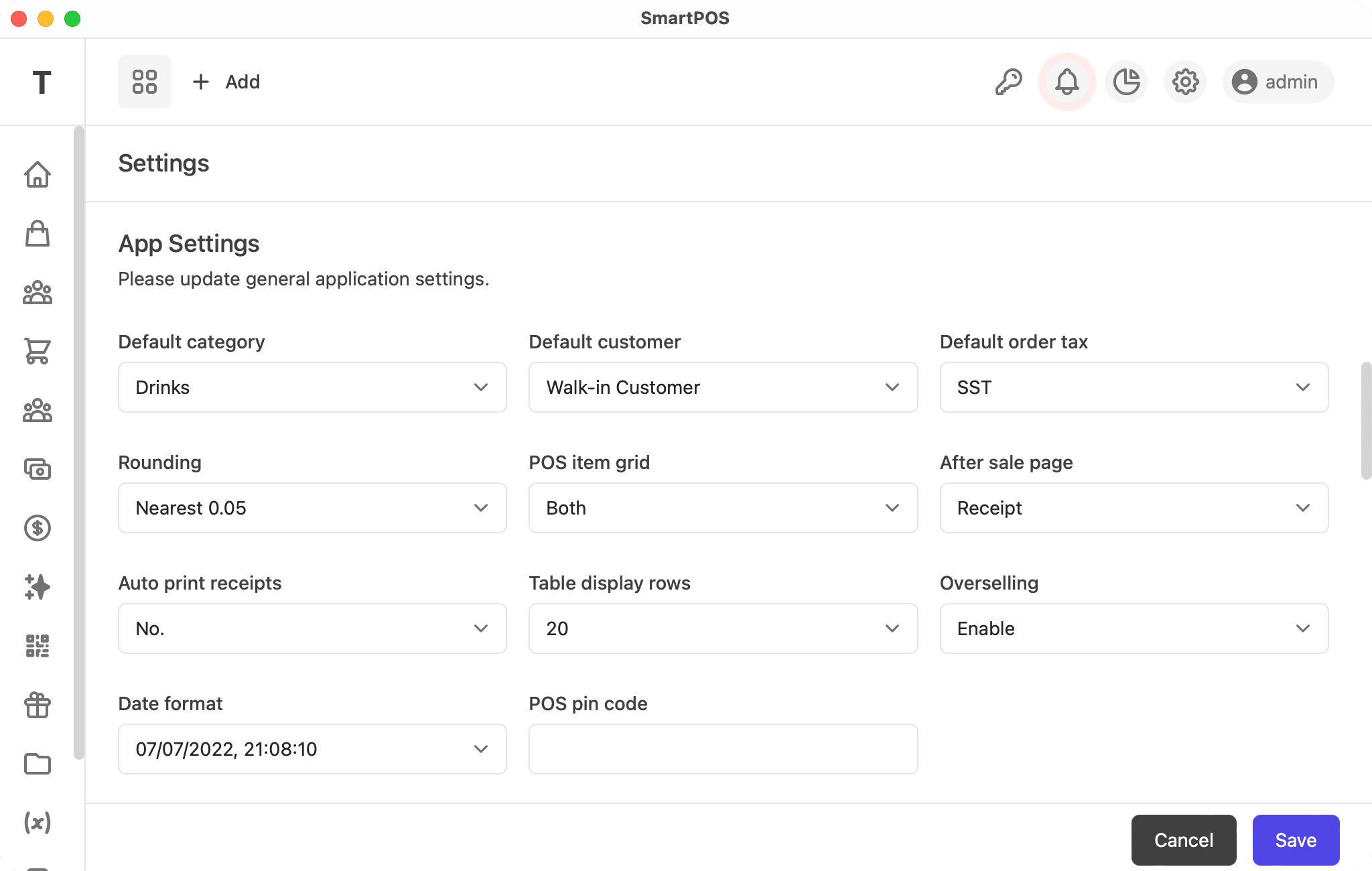
The settings page lets you configure HalaPOS to match your business and your preferences. It is organized into the sections below.
Business Information
This section sets your business information and has the following fields:
- Business/Company Name: business name
- Business/Company Registration: (optional) business registration
- Email: business email address
- Phone: business phone number
- Business/Company Address: (optional) business address
- Country: (optional) business country
- State: (optional) business state
Application Settings
This section lets you configure the application and has the following fields:
- Default Category: default category to load items on the POS grid
- Default Customer: customer auto-selected on the POS
- Default Order Tax: (optional) default order-level tax
- Rounding: (optional) round the grand total
- POS Item Grid: product name, photo, or both
- After Sale Page: page to redirect to after a POS sale
- Auto Print Receipt: automatically print the receipt after a sale
- Table Display Rows: number of table rows
- Overselling: enable/disable overselling
- Date Format: select the date format
- POS Pin Code: (optional) pin code required for staff to delete a POS item
Payment Methods
This section lets you set payment options. Just click Add to get a new input field.
Scale Barcode Settings
This section lets you configure scale barcodes and has the following fields:
- Barcode contains: whether your barcode holds weight or price
- Barcode total characters: total characters in the barcode
- Item code start position: where the product code starts
- Number of characters in item code: item code length
- Weight/price start position: where the weight/price starts
- Number of characters in weight/price: weight/price length
- Weight/price divide by: value to divide the weight/price by to get the unit value
Currency & Number Format
This section lets you configure your currency and number formatting:
- Currency code: currency code for amounts
- Number format: number format for amounts
- Decimal points: number of decimals to display on amounts
- Quantity decimal points: number of decimals to display on quantities
Receipt Header & Footer
You can set the receipt header and footer, and they will be displayed on receipts.
If you have any suggestions, please start a discussion.