
User Guide
Products
Listing Page
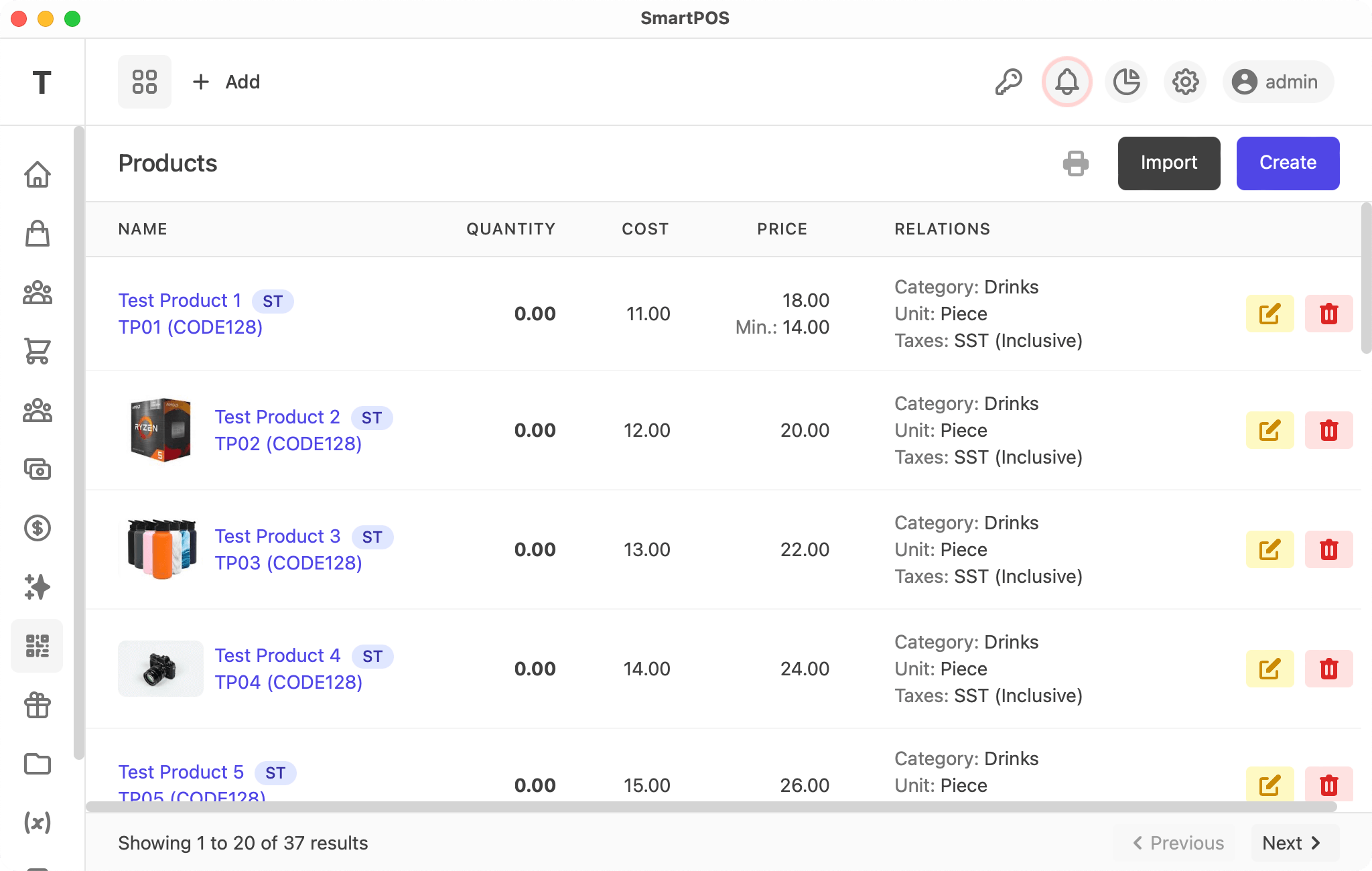
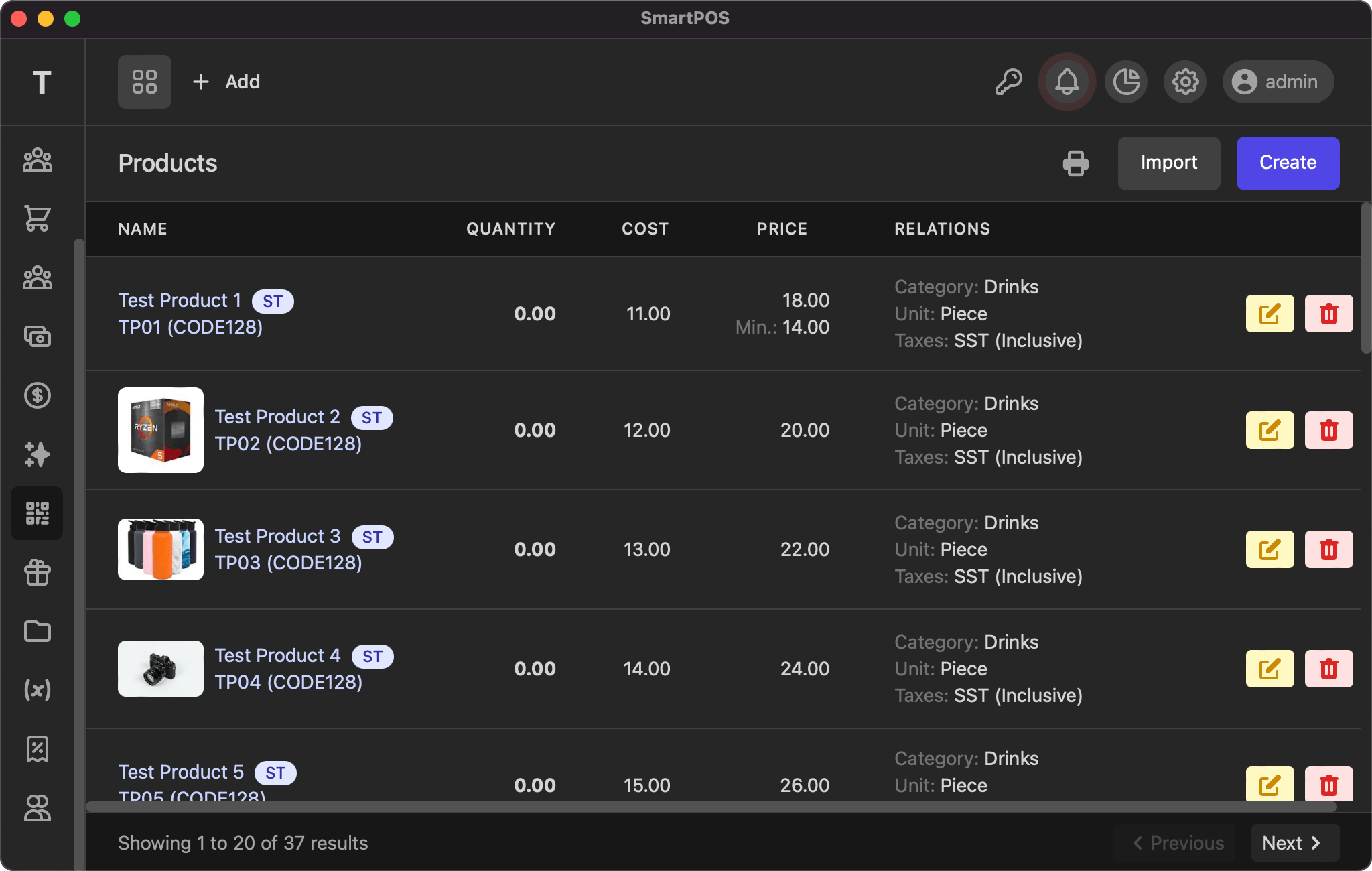
This listing page displays all your products with actions to view, edit, and delete. You can click the photo, name, or code to view the product details. As with other tables, the info and pagination links are at the bottom of the page.
View
The product view modal shows all the details of the product, along with its image, barcode, and QR code.
Add/Edit
The add/edit product page uses the same form, with the following fields:
- Photo: select the product photo (png or jpg)
- Type: standard, combo (combination), or service
- Name: name of the product
- Code: barcode of the product
- Symbology: barcode symbology — CODE128, CODE39, EAN5, EAN8, EAN13, or UPC
- Cost: purchase price of the product
- Price: selling price of the product
- Min. Price: (optional) minimum price at which staff can sell the product
- Quantity: set the product quantity
- Alert Quantity: (optional) stock level at which to show a low-stock alert
- Category: product category
- Unit: product unit
- Taxes: (optional) product taxes
- Tax Method: exclusive/inclusiveExclusive: Price * tax rate / 100Price: 100, Net Price: 100, Tax Rate: 10 (10%), Unit Price: 110Inclusive: Price * tax rate / (100 + tax_rate)Price: 100, Net Price: 90.91, Tax Rate: 9.09 (10%), Unit Price: 100
- Alternate Name: (optional) alternate name of the product
- Details: (optional) product details
Import Products
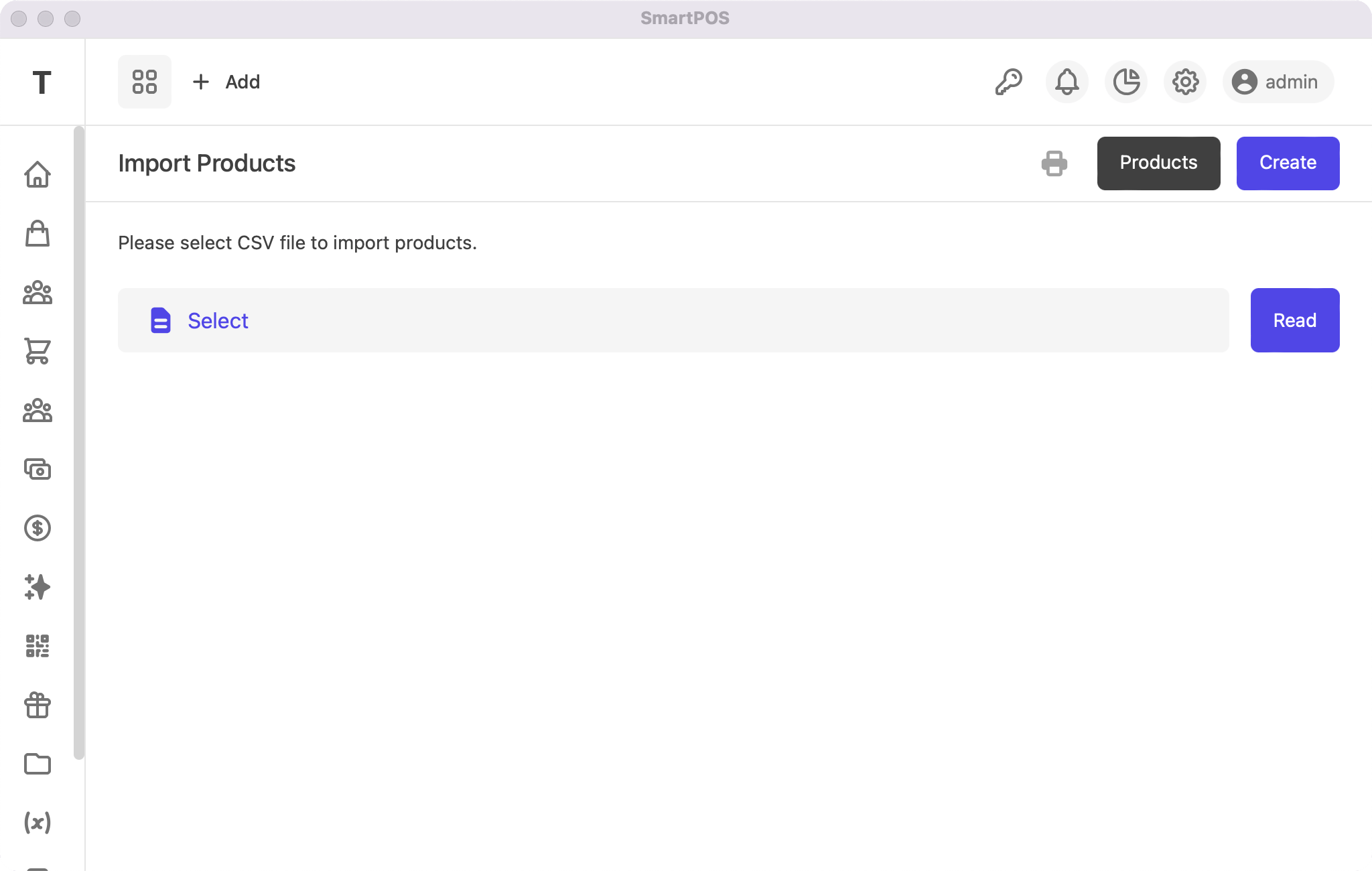
Prepare a CSV (comma separated values) file as follows:
type,code,name,symbology,cost,price,quantity,alert_quantity,category,unit,taxes,tax_method,alt_name,detailsStandard,TP01,Test Product 1,CODE128,11,18,0,,Drinks,Piece,SST,Inclusive,,
You can copy the text above, paste it into Notepad or a text editor, and save it as Products.csv. You can add more rows, and you can open it with Excel or any other spreadsheet software to add rows easily.
The first row must contain the following values, as it is used to determine the column names:
type, code, name, symbology, cost, price, quantity, alert_quantity, category, unit, taxes, tax_method, alt_name, details
To import with photos, create a folder on your desktop and name it
HalaPOS. Save your products' photos in this folder. Each photo name should be the product code (TP01.png,TP02.png, etc.), and only .png files are supported.
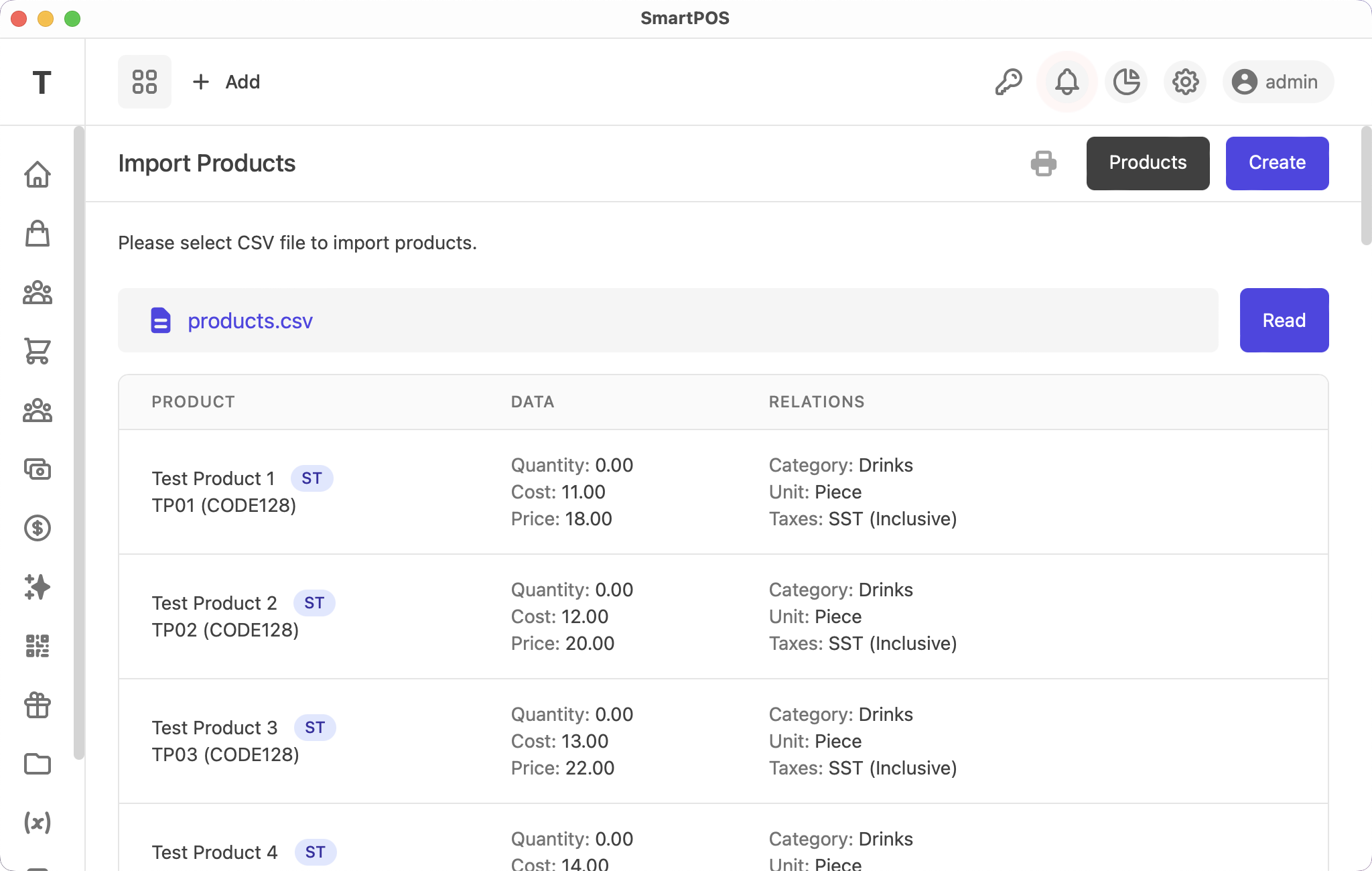
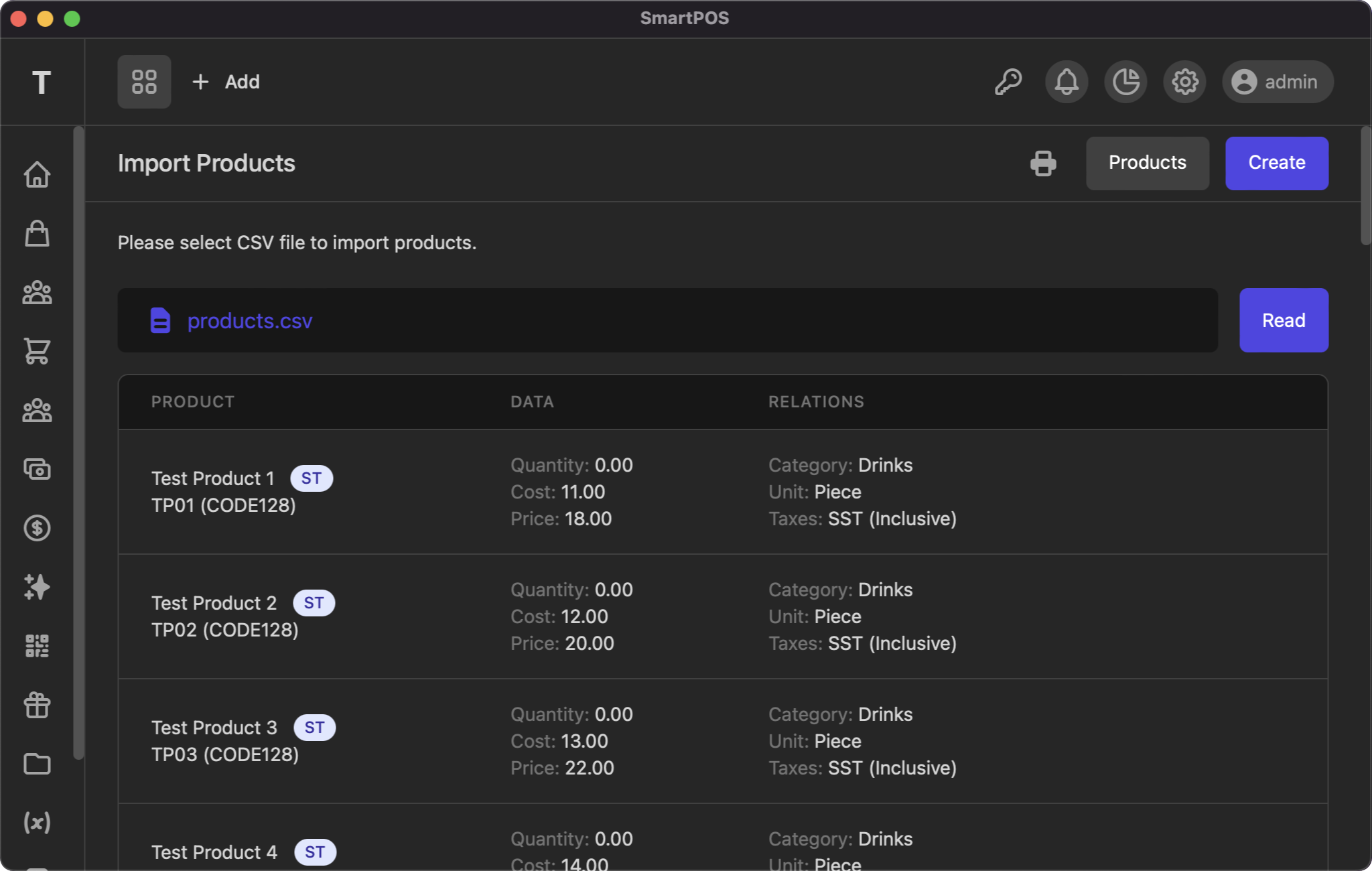
Once you have prepared the file, select it and click Read. The system will read your file and show you the product details. Lastly, click Save to complete the import and view the result.
If you have any suggestions, please start a discussion.